How to Safely Update and Roll Back Folding Treadmill Firmware: Step‑by‑Step Guide
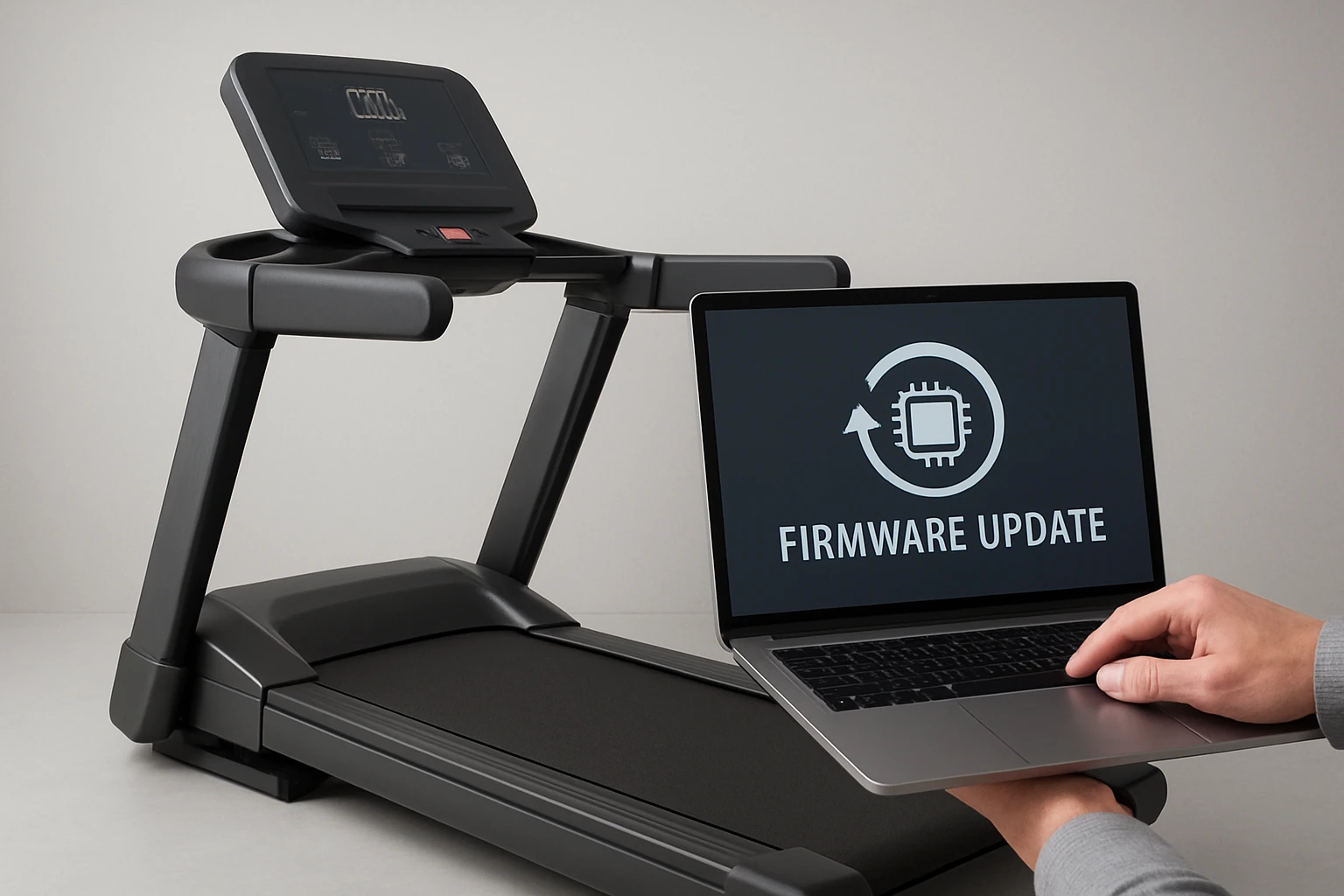
This guide explains how one can update the firmware of a folding treadmill and, when necessary, roll back to a previous version. The process is valuable because firmware updates can improve motor performance, add new incline settings, and resolve connectivity issues, while a rollback can restore stability after a problematic update. By following the instructions, one will protect the treadmill hardware, avoid data loss, and maintain a safe exercise environment.
What You Will Need
- A stable, level surface for the treadmill during the update.
- A reliable Wi‑Fi connection or a compatible USB flash drive.
- The official firmware file from the manufacturer’s support site.
- A MERACH Foldable Home Treadmill or Cardirun Foldable Home Treadmill for testing the update process.
- A smartphone or tablet with the MERACH or Cardirun companion app installed.
- A set of screwdrivers (Phillips #2) for accessing the firmware port if required.
Step 1: Prepare the Treadmill and Workspace
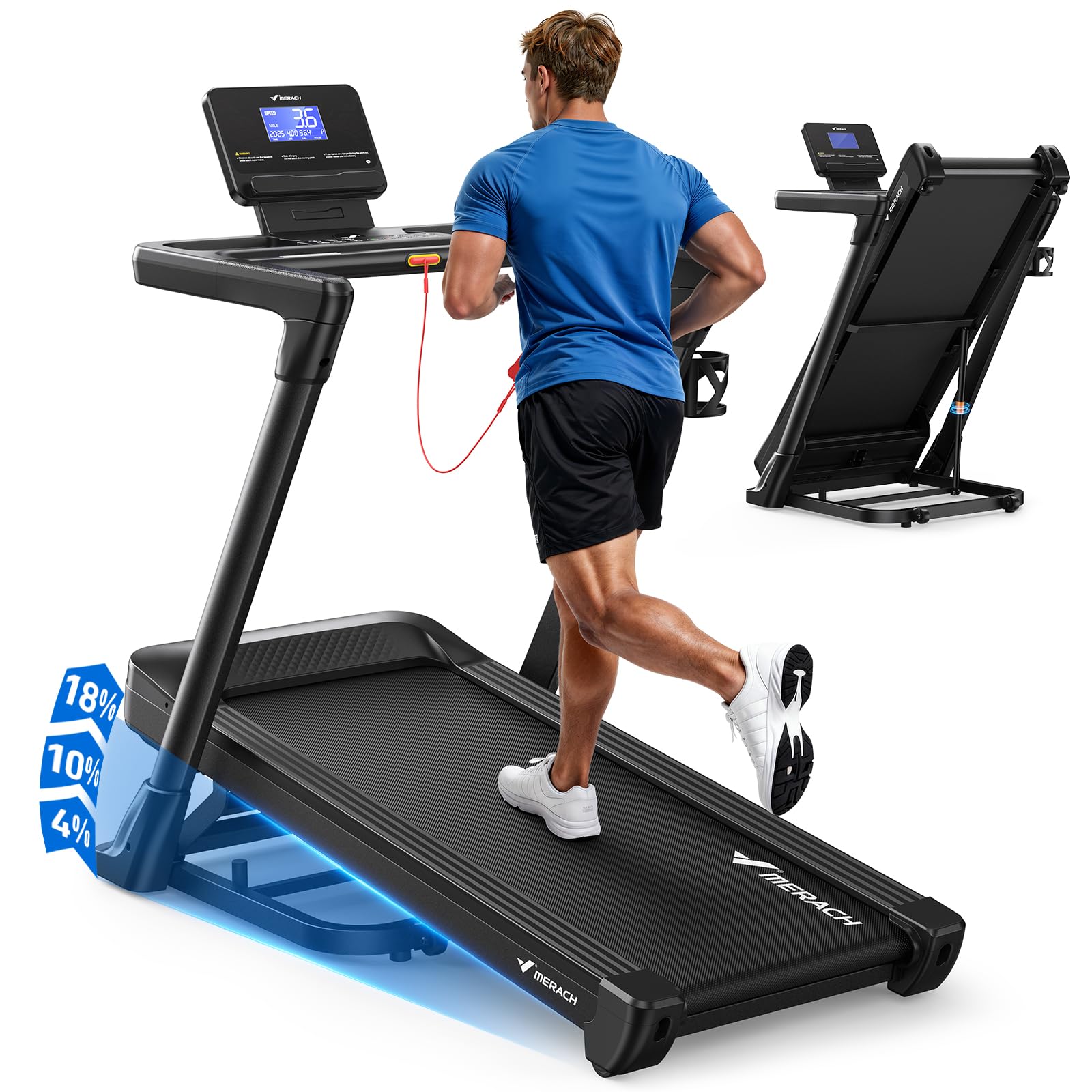
Begin by placing the treadmill on a flat, non‑slippery floor. The heavy‑duty steel frame of the MERACH Foldable Home Treadmill supports up to 350 lb, ensuring that the device will not wobble during the update. Its shock‑absorbing system reduces vibration, which helps protect the internal electronics. Verify that the treadmill is unplugged before adjusting any components.
Next, gather the required tools. A Phillips #2 screwdriver will allow access to the firmware port located beneath the console panel. Keep the workspace clear of pets and children to prevent accidental interference.
Finally, ensure that the Wi‑Fi network is stable. The MERACH and Cardirun models both support OTA (over‑the‑air) updates via their companion apps, which rely on a consistent connection to download the firmware package.
Step 2: Verify the Current Firmware Version
Power on the treadmill and launch the companion app. For the MERACH model, the app displays the firmware version on the home screen alongside speed, incline, and heart‑rate data. Record this version in a notebook; it will be needed if a rollback becomes necessary. The Cardirun treadmill provides a similar display on its multi‑function LED console, which can be accessed by pressing the “Info” button.
Documenting the existing version is essential because manufacturers sometimes release patches that address specific bugs. Knowing the baseline version helps one determine whether the new firmware offers genuine improvements.
Step 3: Download the Official Firmware File
Visit the official support page of the treadmill brand. Only download firmware files that are signed by the manufacturer; third‑party files can corrupt the motor controller. Save the file to a USB flash drive formatted in FAT32, or allow the app to download directly if OTA is supported.
For users who prefer a physical medium, the MERACH treadmill includes a USB port on the rear panel. Insert the flash drive and confirm that the device recognises the file by navigating to the “Update” menu in the app.
Step 4: Initiate the Firmware Update
With the treadmill connected to power and the Wi‑Fi network, open the update section of the app. Select “Check for Updates” and, if the new version is detected, choose “Install”. The MERACH treadmill will display a progress bar on its LED screen, while the Cardirun model will show a similar indicator on its console.
Do not interrupt the process. The 3.5 HP brushless motor of both treadmills continues to run at a low idle speed, but the controller remains locked until the update completes. Interrupting the power supply can brick the device, requiring professional service.
Step 5: Verify the Update Completion
After the installation finishes, the treadmill will restart automatically. Re‑enter the app and confirm that the firmware version matches the one recorded in Step 2. Perform a short 5‑minute walk at a moderate speed to ensure that the motor, incline mechanism, and display operate correctly.
If any anomalies appear, such as unusual noises or inaccurate speed readings, proceed to Step 7 for troubleshooting.
Step 6: Rolling Back to a Previous Firmware (If Required)
In the rare event that the new firmware introduces instability, one can roll back to the prior version. First, locate the older firmware file on the manufacturer’s archive page. Copy it to the same USB flash drive used in Step 3.
Power off the treadmill, then press and hold the “Reset” button on the console for five seconds while plugging the power cord back in. This action places the controller in recovery mode, allowing the older firmware to be flashed. Use the app’s “Manual Update” option, select the older file, and confirm the installation.
Once the rollback completes, repeat the verification steps in Step 5. The treadmill should now operate as it did before the problematic update.
Tips & Pro Tips
- Perform updates during a time when the household is quiet; the motor operates below 45 dB, but the console may emit audible prompts.
- Keep the treadmill’s firmware backup on a separate USB drive; this prevents data loss if the primary drive becomes corrupted.
- Use the MERACH app’s “Battery Optimizer” feature to ensure that the treadmill’s internal battery (if applicable) is fully charged before starting an OTA update.
- If the treadmill is located in a multi‑room apartment, consider using a Wi‑Fi extender to maintain a strong signal throughout the update.
Troubleshooting
Problem: Update stalls at 50 % and the console freezes.
Solution: Power cycle the treadmill by unplugging it for 30 seconds, then restart the update using a wired Ethernet connection if available. This bypasses potential Wi‑Fi interference.
Problem: After rollback, the treadmill displays “Firmware Mismatch”.
Solution: Ensure that the older firmware file matches the exact model number (MERACH or Cardirun). Re‑download the file from the official site and repeat the manual update procedure.
Conclusion
By following the steps outlined above, one can update or roll back the firmware of a folding treadmill safely and efficiently. The process protects the motor, preserves user data, and maximizes the lifespan of the equipment. Readers are encouraged to apply these practices whenever a manufacturer releases a new firmware version, thereby maintaining optimal performance and safety.
Products Mentioned in This Guide
MERACH Foldable Home Treadmill
Rating: 4.3/5.0 (172 reviews)
Key features: 18% auto incline, 3.5 HP brushless motor, 350 lb capacity, shock‑absorbing belt, LED display, MERACH app integration.
Cardirun Foldable Home Treadmill
Price: $449.99
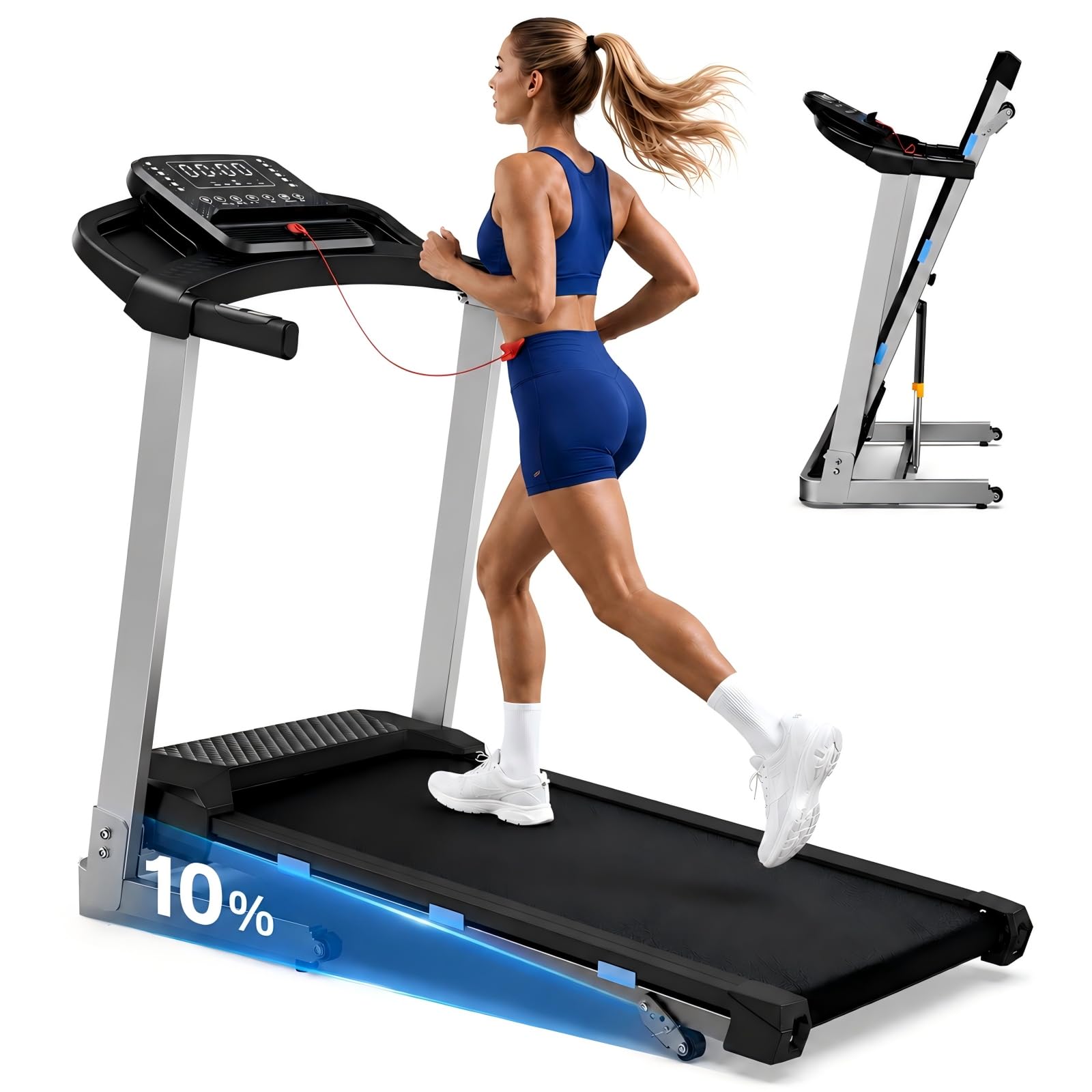
Key features: 3.5 HP quiet motor, 400 lb capacity, manual 0‑3‑10% incline, 16" x 40" running area, LED console with speaker, Bluetooth connectivity.
Frequently Asked Questions
How do I prepare my folding treadmill before updating the firmware?
Place the treadmill on a stable, level surface, ensure it’s fully powered, and verify a strong Wi‑Fi or USB connection.
Where can I download the official firmware file?
Download it from the manufacturer’s support website, matching your treadmill model.
What steps are needed to install the firmware via the companion app?
Open the app, select “Firmware Update”, follow the on‑screen prompts to transfer and install the file, and let the treadmill reboot.
How can I roll back to a previous firmware version if the update causes issues?
Use the app’s “Rollback” option or reinstall the older firmware file via USB, then restart the treadmill.
Will updating firmware affect my workout data or settings?
The update may reset custom settings, so note them beforehand; workout data is usually stored in the cloud and remains safe.