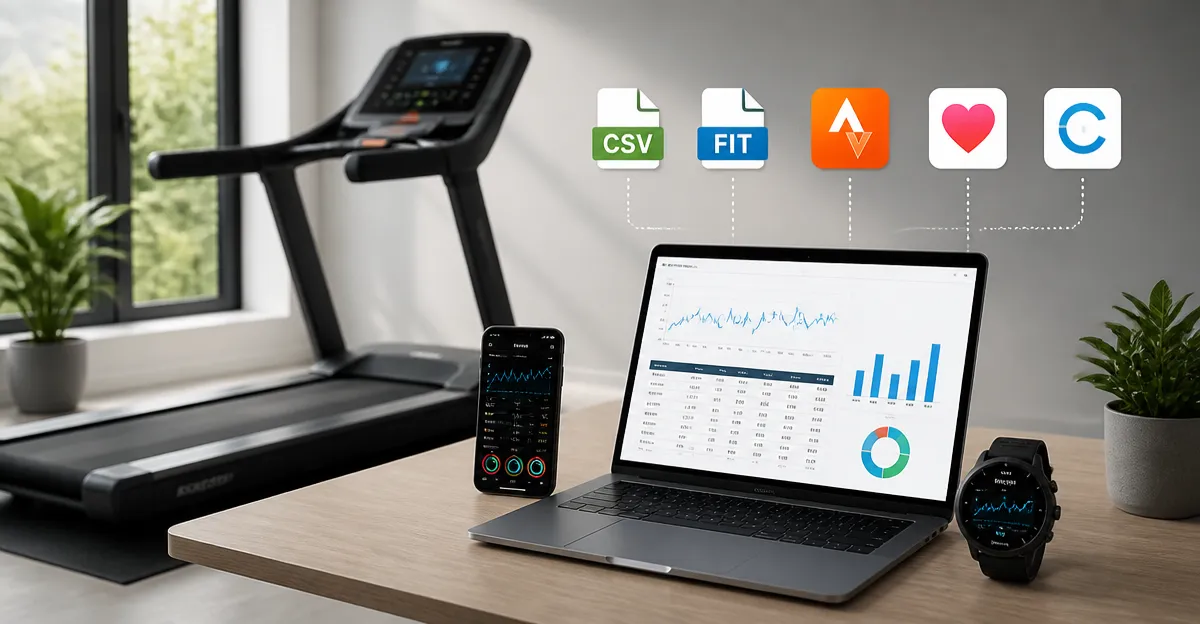
How to Export Treadmill Workout Data: Step‑by‑Step Guide to CSV, FIT and Syncing with Strava, Apple Health, and Garmin
The modern treadmill often records detailed metrics such as speed, incline, heart rate, and calories burned. One can transform those metrics into portable files and share them with popular fitness platforms. This guide explains how to extract data, convert it to CSV or FIT formats, and synchronize it with Strava, Apple Health, and Garmin Connect. By following the instructions, the reader will gain control over personal fitness records and enhance long‑term performance analysis.
What You Will Need
- Wi‑Fi enabled treadmill (e.g., NordicTrack T Series)
- Companion mobile app (iFIT for NordicTrack or Cardirun app for the walking pad)
- Smartphone or tablet with Bluetooth and internet access
- Computer with file‑conversion software (free tools such as FitFileConverter)
- Accounts on Strava, Apple Health, and Garmin Connect
All of the items listed above are readily available and do not require additional hardware beyond the treadmill itself. The recommended treadmills provide built‑in Wi‑Fi and data‑export capabilities, which simplify the process considerably. If space is limited, the Cardirun Walking Pad offers a compact alternative that still supports data export. The following sections break the workflow into clear, actionable steps.
Step 1: Connect the Treadmill to a Stable Wi‑Fi Network
Begin by powering on the treadmill and navigating to the network settings menu on the display. Select the home Wi‑Fi network, enter the password, and confirm the connection; a stable connection is essential for reliable data transmission. The NordicTrack T Series features a 5" LCD display that clearly shows connection status, reducing guesswork for users. A reliable Wi‑Fi link ensures that workout logs are automatically uploaded to the cloud, where they can later be retrieved for export.
Step 2: Install and Configure the Companion App
Download the iFIT app for NordicTrack or the Cardirun app for the walking pad from the official app stores. After installing, create an account or sign in, then pair the treadmill via Bluetooth or Wi‑Fi as instructed by the on‑screen wizard. The iFIT app provides a dedicated export function that generates CSV files for each session, while the Cardirun app offers a similar feature with FIT file output. Configuring the app to store workouts in the cloud simplifies later retrieval and eliminates the need for manual USB transfers.
Step 3: Export Workout Data to CSV or FIT
Once a workout is completed, open the companion app’s activity history and locate the desired session. Select the export option; the iFIT interface labels the CSV format clearly, whereas the Cardirun app labels FIT as the default file type. Save the exported file to the smartphone’s downloads folder or email it to a personal address for easy access on a computer. The exported files contain columns for time, distance, speed, incline, heart rate, and calories, providing a comprehensive dataset for further analysis.
Step 4: Convert Files for Platform Compatibility
Some platforms, such as Strava, accept both CSV and FIT files, while Apple Health prefers FIT. If the exported file is in CSV format and the target platform requires FIT, use a free conversion tool like FitFileConverter. Load the CSV file into the converter, map the columns to the appropriate FIT fields, and generate a FIT file. Verify the conversion by opening the FIT file in a viewer to ensure that all metrics appear correctly. This step guarantees seamless import without data loss.
Step 5: Sync the Data with Strava
Log in to the Strava website or mobile app and navigate to the upload page. Choose the file type (CSV or FIT) and drag the exported file into the upload box, then confirm the activity details. Strava will process the file, generate a route map if GPS data is present, and display all recorded metrics. After the upload, the activity appears in the user’s feed, where it can be shared, analyzed, and compared with other workouts. Regularly syncing treadmill data with Strava enables the use of advanced analytics such as power curves and training load calculations.
Step 6: Sync the Data with Apple Health
Apple Health does not provide a direct file‑upload interface; instead, it relies on third‑party apps that can import FIT files. Install a reputable app such as HealthFit, open it, and import the FIT file generated in Step 4. The app will request permission to write data to Apple Health; grant the permission to allow heart‑rate, distance, and calorie information to be stored. Once the import completes, Apple Health will display the treadmill session alongside other activities, enabling comprehensive health tracking across devices.
Step 7: Sync the Data with Garmin Connect
Garmin Connect accepts FIT files through its web portal or mobile app. Log in to Garmin Connect, select the "Import Data" option, and upload the FIT file. After processing, the activity appears in the Garmin dashboard, where it can be merged with other Garmin‑recorded workouts for a unified view. Users who own Garmin wearables benefit from automatic synchronization of heart‑rate data, allowing deeper insight into cardio performance during treadmill sessions.
Tips & Pro Tips
- Maintain a consistent naming convention for exported files (e.g., YYYY‑MM‑DD_Treadmill.csv) to simplify organization.
- Enable automatic cloud backup in the companion app to prevent accidental loss of workout history.
- When converting CSV to FIT, double‑check column mapping to avoid mismatched data such as swapped speed and incline values.
- Use the treadmill’s built‑in device shelf to place a smartphone while exercising; this reduces the need to pause for manual data entry.
- For users who prefer a portable solution, the Cardirun Walking Pad offers a compact footprint and quiet motor, making it ideal for under‑desk use while still supporting data export.
Troubleshooting
Problem: Exported file is empty or missing columns.
Solution: Verify that the treadmill’s firmware is up to date and that the companion app has permission to access sensor data. Re‑connect the treadmill to Wi‑Fi and repeat the export.
Problem: FIT file fails to import into Strava.
Solution: Use the latest version of the conversion tool and ensure that the file adheres to the FIT protocol version supported by Strava (v2.0 or later).
Problem: Apple Health does not display imported data.
Solution: Confirm that the third‑party import app has been granted write access to Apple Health in the Settings app under Privacy > Health.
Conclusion
This guide has demonstrated how to connect a Wi‑Fi enabled treadmill, export workout data, convert it to compatible formats, and synchronize it with leading fitness platforms. By leveraging the built‑in capabilities of devices such as the NordicTrack T Series and the Cardirun Walking Pad, users can automate data capture and enjoy richer analytics. Consistent data synchronization empowers athletes to track progress, set realistic goals, and make informed training decisions. Implement the steps outlined above to unlock the full potential of treadmill workouts within your digital health ecosystem.
Products Mentioned in This Guide
Frequently Asked Questions
How do I export treadmill workout data to CSV or FIT?
Download the session from the treadmill’s companion app (e.g., iFIT) and use a free converter like FitFileConverter to save it as CSV or FIT.
Can I sync exported treadmill data with Strava, Apple Health, or Garmin Connect?
Yes—once the file is in CSV or FIT, upload it directly to Strava or Garmin Connect, or import the CSV into Apple Health via the Health app’s file import feature.
What equipment do I need to export and sync treadmill data?
A Wi‑Fi‑enabled treadmill, its companion mobile app, a smartphone or tablet, a computer with conversion software, and accounts on Strava, Apple Health, and Garmin Connect.
Is there a free tool to convert treadmill files to FIT format?
FitFileConverter is a free utility that converts exported treadmill files (often in proprietary formats) to the industry‑standard FIT file.
Why might my treadmill data not appear after syncing?
Common issues include using an outdated app, not granting Bluetooth or internet permissions, or uploading the wrong file type; updating the app and confirming the correct format usually resolves it.