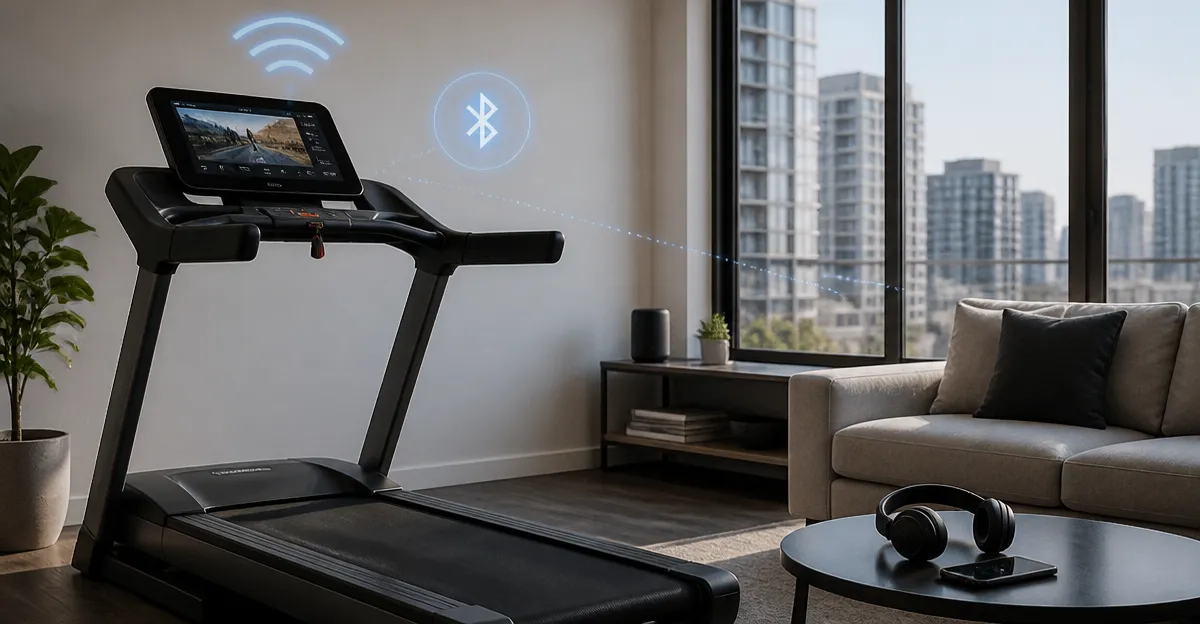
How to Improve Treadmill Wi‑Fi & Bluetooth Connections in an Apartment: 10 Simple, Proven Fixes
Introduction
Many apartment dwellers rely on smart treadmills that stream workout videos and sync performance data via Wi‑Fi or Bluetooth. In a compact living space, signal strength can be inconsistent, leading to buffering, dropped connections, or inaccurate tracking. This guide explains ten practical fixes that address both wireless technologies, allowing the treadmill to operate reliably without major renovations. By following these steps, one can achieve a stable connection, improve workout experience, and protect personal data.
The steps are organized from basic assessment to advanced hardware solutions, ensuring that readers can apply the most appropriate fix for their situation. The guide also includes product recommendations that serve as tools rather than mandatory purchases, so the advice remains valuable even without additional equipment.
What You Will Need
- Smartphone or laptop for network diagnostics
- Phillips screwdriver (if router repositioning requires mounting)
- Ethernet cable (optional for wired connection)
- One of the recommended Wi‑Fi extenders or repeaters
Step 1: Assess Current Signal Strength
Begin by measuring the Wi‑Fi signal that reaches the treadmill. Use a mobile app such as Wi‑Fi Analyzer to record the signal strength in decibels (dBm) while standing on the treadmill platform. A reading above –65 dBm generally indicates a strong connection, whereas values below –80 dBm suggest a weak signal that may cause interruptions.
Document the reading for both the 2.4 GHz and 5 GHz bands, because many treadmills default to the 2.4 GHz band for broader coverage. This baseline will help you evaluate the effectiveness of each subsequent fix.
Step 2: Relocate the Treadmill Near the Router
Physical distance is the most common cause of poor connectivity. If possible, place the treadmill within 10 feet of the router, avoiding large metal objects such as filing cabinets or appliances that block radio waves. Elevating the treadmill a few inches off the floor can also reduce signal absorption by concrete or carpet.
When relocation is not feasible due to space constraints, proceed to the next steps that mitigate interference without moving equipment.
Step 3: Reduce Interference From Other Devices
Electronic devices that operate on similar frequencies—microwave ovens, cordless phones, and baby monitors—can degrade Wi‑Fi performance. Turn off or relocate these devices during workout sessions. Additionally, disable Bluetooth devices that are not required, as overlapping signals may cause packet loss.
Creating a clear line‑of‑sight between the router and treadmill, even if the distance remains unchanged, often improves both Wi‑Fi and Bluetooth reliability.
Step 4: Update Treadmill Firmware
Manufacturers regularly release firmware updates that address connectivity bugs and improve protocol handling. Access the treadmill’s settings menu, navigate to the firmware section, and follow the on‑screen prompts to download and install the latest version. Ensure the treadmill is connected to a stable network during the update process.
After updating, repeat the signal strength test from Step 1 to verify any improvement.
Step 5: Use a Dedicated Wi‑Fi Channel
Wi‑Fi routers broadcast on multiple channels within each band. Congestion occurs when neighboring apartments use the same channel. Log into the router’s admin interface and switch the 2.4 GHz band to channel 1, 6, or 11, which are non‑overlapping. For the 5 GHz band, select a channel with the fewest neighboring networks, as indicated by the analyzer app.
Changing the channel reduces packet collisions and can increase throughput for the treadmill’s streaming functions.
Step 6: Extend Coverage With a Dual‑Band Wi‑Fi Extender
If the treadmill remains in a dead zone after optimizing placement and channels, consider adding a Wi‑Fi extender. The GEYILO Dual‑Band WiFi Extender offers up to 12,880 sq ft of coverage and supports 105 devices simultaneously, making it suitable for apartment complexes with many smart gadgets.
Key features include dual‑band operation (5 GHz for high‑speed streaming and 2.4 GHz for better penetration), a one‑tap setup that completes configuration within minutes, and an Ethernet port for wired stability. Its 4.8‑star rating from 46 reviews indicates reliable performance in real‑world environments.
Place the extender halfway between the router and treadmill, ensuring that the indicator lights show a strong connection to the router. Once powered, the extender creates a new SSID that can be selected on the treadmill’s Wi‑Fi settings.
Step 7: Connect the Treadmill via Ethernet for Maximum Stability
When wireless performance remains inconsistent, a wired connection eliminates radio‑frequency variables. The Ethernet port on the GEYILO Dual‑Band WiFi Extender allows a direct cable link from the extender to the treadmill. This setup provides a stable, low‑latency link that is ideal for high‑definition video streaming and precise data syncing.
Use a short Ethernet cable to connect the treadmill’s network jack to the extender’s port. After connecting, select the wired network option in the treadmill’s settings menu. Verify the connection by streaming a workout video; buffering should be eliminated.
Step 8: Add a Long‑Range Wi‑Fi Repeater for Additional Reach
In larger apartments or multi‑level units, a single extender may not cover all areas. The Aodcaopul Long‑Range WiFi Repeater provides coverage up to 9,789 sq ft and supports more than 40 devices, making it an excellent complementary tool.
Its plug‑and‑play design requires only a few seconds to establish a connection, and the device includes security protocols (WEP, WPA, WPA2) to protect personal data. With a 4.9‑star rating from 27 reviews, users report stable performance even in environments with many competing networks.
Install the repeater in a location where the signal from the primary extender is still strong, such as the hallway opposite the treadmill. Configure the repeater to extend the same SSID or create a new one, then connect the treadmill to the strongest signal.
Step 9: Optimize Bluetooth Settings
Bluetooth operates on the 2.4 GHz spectrum, which can clash with Wi‑Fi if both use the same channel. After securing Wi‑Fi performance, enable the treadmill’s Bluetooth mode and pair it with the fitness app on a smartphone placed within two meters. Disable other Bluetooth peripherals during the workout to reduce interference.
If the treadmill supports Bluetooth Low Energy (BLE), ensure that the smartphone’s operating system is updated, as newer versions improve connection handling and reduce latency.
Step 10: Test and Verify Stability
Conduct a final test by running a 30‑minute high‑definition workout video while monitoring the signal strength and Bluetooth latency. Use the network diagnostics app to confirm that the signal remains above –65 dBm throughout the session. Record any drops or stutters and note their frequency.
If occasional interruptions persist, revisit Steps 3 through 8, adjusting the placement of extenders or cables until the connection remains consistent for the entire duration.
Tips & Pro Tips
- Label each extender with its SSID and channel to avoid confusion when troubleshooting.
- Schedule firmware updates for the router during off‑peak hours to prevent temporary outages.
- Use a surge protector for all network equipment to safeguard against power spikes common in apartment buildings.
- Consider enabling Quality of Service (QoS) on the router to prioritize treadmill traffic over less critical devices.
Troubleshooting
| Problem | Possible Cause | Solution |
|---|---|---|
| Frequent buffering | Weak Wi‑Fi signal | Reposition extender closer to treadmill or add a second repeater. |
| Bluetooth disconnects | Channel interference | Switch router to a non‑overlapping 5 GHz channel and keep other Bluetooth devices turned off. |
| No internet access via Ethernet | Faulty cable or port | Replace Ethernet cable and verify that the extender’s port shows a link light. |
Conclusion
Improving treadmill Wi‑Fi and Bluetooth connections in an apartment requires a systematic approach that starts with assessment, proceeds through environmental adjustments, and culminates in strategic hardware deployment. By following the ten steps outlined above, one can achieve a reliable, high‑speed connection that enhances the workout experience and protects data integrity. Readers are encouraged to implement the fixes that best match their living situation and to enjoy uninterrupted fitness sessions.
Products Mentioned in This Guide
GEYILO Dual‑Band WiFi Extender
Rating: 4.8/5.0 (46 reviews)
Features: 12,880 sq ft coverage, supports 105 devices, dual‑band 5 GHz/2.4 GHz, one‑tap setup, Ethernet port for wired stability.
Aodcaopul Long‑Range WiFi Repeater
Rating: 4.9/5.0 (27 reviews)
Features: Coverage up to 9,789 sq ft, supports over 40 devices, 300 Mbps speed on 2.4 GHz, plug‑and‑play setup, advanced security (WEP/WPA/WPA2).
Frequently Asked Questions
Why does my treadmill lose Wi‑Fi connection in an apartment?
Apartment walls, neighboring networks, and electronic interference can weaken the signal, causing buffering or dropped connections.
How can I test the treadmill's Wi‑Fi strength before making changes?
Use a smartphone or laptop to run a network speed test near the treadmill and note signal strength (RSSI) and latency.
What is the simplest way to improve Wi‑Fi coverage for a treadmill?
Reposition the router to a more central location or place a Wi‑Fi extender halfway between the router and the treadmill.
Can I use a wired Ethernet connection with a smart treadmill?
Yes; connecting the treadmill via Ethernet (or a powerline adapter) provides a stable link and eliminates wireless interference.
How do I reduce Bluetooth interference on a treadmill?
Keep the treadmill away from other Bluetooth or 2.4 GHz devices, and enable the treadmill’s Bluetooth 5.0 mode if available.